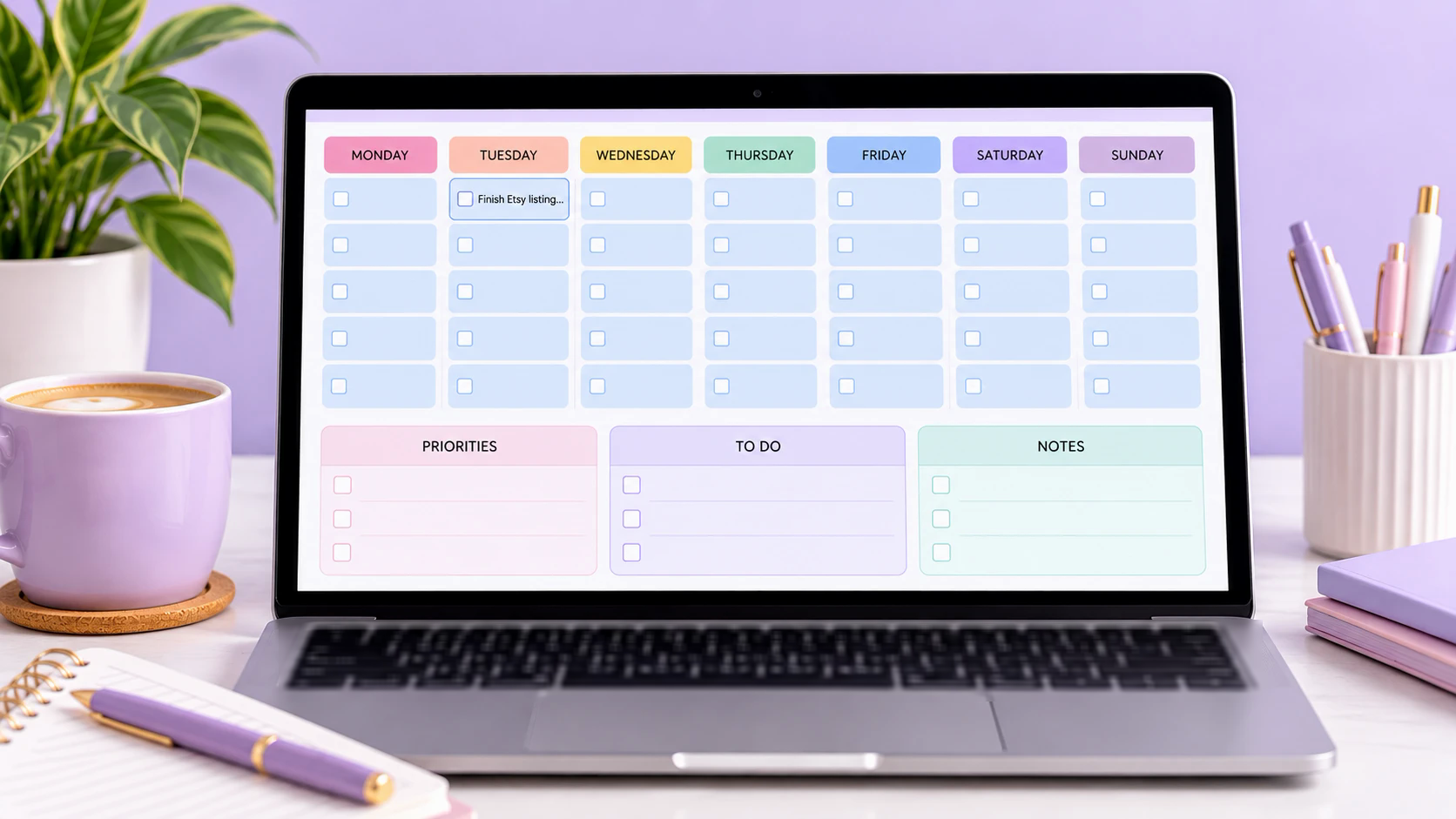
The best AI tool to create fillable PDF planners isn’t one tool. It’s a combo: Canva AI to design the pages fast, and Adobe Acrobat to turn those pages into typeable boxes automatically.
On a zero budget, swap Acrobat for Sejda. Its free version auto-detects fields too, but only 3 tasks an hour and a cap on file size.
Why no one-click version yet? AI is great at layouts and words.
But the part that makes a PDF fillable (invisible text boxes sitting exactly on your lines) is still a job for a PDF editor.
One big catch before you build anything: Goodnotes doesn’t support fillable fields. So buyers who plan in Goodnotes on an iPad can’t type into your planner, and you’ll want a hyperlinked version they can write on with a stylus too.
Quick note: some links in this post may be affiliate links. If you buy through one, I may earn a small commission at no extra cost to you.
Fillable PDF Planner Tools at a Glance
| Tool | Its job in the workflow | Auto-detects fields? | Price (checked Sept. 2026) | Best for | The catch |
| Canva AI | Designs the planner pages from a prompt | No fields at all | Free plan with limited AI uses; Pro $18/month | Fast, good-looking layouts | Can’t make fillable fields. Pro elements can’t be sold in a PDF |
| Adobe Acrobat (Standard or Pro) | Turns lines and boxes into typeable fields | Yes | Standard $24.99/mo, Pro $29.99/mo | Sellers making planners in batches | Paid. Repeated table rows need fixing by hand |
| Sejda | Same job as Acrobat, in your browser | Yes | Free (3 tasks an hour); $7.50/mo or $5 for a week | Testing your first planner for $0 | Free limits are tight for big planners |
| PDFgear | Free PDF editor with an AI assistant | No — fields go in by hand | Free | A simple page with a few boxes | Slow for anything over a few pages |
| ChatGPT Plus / Claude Pro | Writes the planner content and page list | Not their job | Free tiers; paid $20/mo each | Niche prompts, trackers, checklists | Weak at layout and design |
Fillable vs. Hyperlinked: The Goodnotes Catch
A fillable PDF has real form fields: boxes the buyer clicks and types into. A hyperlinked PDF has clickable tabs that jump between pages, and the buyer writes on it with a stylus.
They sound like the same product. They’re not, and the difference decides which apps your buyer can use.
Here’s the advice you’ll see everywhere: make your planner fillable so people can use it on their iPad in Goodnotes. Here’s what I actually found:
- Goodnotes users have asked for fillable form support since 2019. As of early 2025, users on Goodnotes’ own feedback board were still confirming the fields don’t work, and I couldn’t find anything from Goodnotes saying that has changed.
- Notability struggles with them too. Its own help page says some form fields won’t display and suggests flattening the file first, which makes them unfillable.
- These apps DO handle fields well: the free Adobe Acrobat Reader (computer, iPad and phone), Preview on a Mac, PDF Expert and Xodo.
So here’s what I’d do. I call it the Two-Version Rule: design your planner once, then sell it as two files in the same listing.
- The fillable version — for people who type. They open it in Acrobat Reader or Preview and click into the boxes.
- The hyperlinked version — for Goodnotes and Notability fans who write with a stylus. (My Goodnotes digital planner guide walks through building that one.)
Same design, two downloads. The buyer plans the way they like, and you skip the one-star review from someone whose boxes won’t type in Goodnotes.

The Best AI Tools for Fillable PDF Planners, Tool by Tool
Every tool below gets judged on the four things that matter when you’re selling: how fast it gets you to a finished file, how easy it is, what it costs, and what it can’t do.
Canva AI: best for fast layouts
Type a prompt like “minimalist weekly planner page with a to-do list, habit tracker and notes box” and Canva AI builds an editable design. Canva’s 2026 update added multi-page designs from a single prompt, with every layer still editable.
Reality check: treat what it gives you as a strong first draft, not a finished planner. You’ll still tidy spacing, line up boxes and duplicate pages yourself.
The catch: Canva can’t create fillable fields. Every guide on the subject, including ones written by PDF companies, lands on the same fix: design in Canva, then add fields in another tool.
Cost: the free plan includes a limited monthly allowance of AI uses. Canva Pro is $18 per month when paying monthly — but read the licensing section below before you put Pro elements in anything you sell.
Adobe Acrobat: best for turning lines into fields
This is the step that saves the most time. Acrobat’s Prepare a Form tool scans your PDF and turns underlines, boxes and tables into text fields on its own.
It’s in both Acrobat Standard and Acrobat Pro, so you don’t need the pricier plan for this job.
Reality check: it’s great on clean lines and boxes. It gets patchy on repeated rows in a table, like a 31-day habit tracker grid, so plan to fix those by hand.
Cost: Standard is $14.99 a month and Pro is $19.99 a month (Adobe’s US pricing, September 2026).
What I’d do: design a batch of planners first. Then subscribe, convert them all at once, and cancel.
If you’re only doing a batch, pick the month-to-month option — Adobe’s annual plans charge a fee if you cancel early.
Sejda: best free option with auto-detect
Sejda does the same field-detecting job as Acrobat, right in your web browser. Upload the PDF, click auto-detect, and it drops fields onto your lines.
Reality check: the free version allows 3 tasks an hour and limits file size. That’s plenty for testing one planner, and not enough for a 200-page yearly monster.
Cost: free, or $7.50 a month. There’s also a $5 one-week pass, which is perfect for a single batch.
What I’d do: make your first fillable planner here. Pay for something only once you know people are buying.
PDFgear: free, but you place every field by hand
PDFgear gets described online as a one-click AI form builder. Its own website says otherwise: its comparison table lists “Automatic field detector: No.“
Its AI Copilot is real, but it handles things like compressing files and summarizing documents. It doesn’t build forms.
Where it still shines: it’s completely free, with no watermark, on Windows, Mac, iPhone and Android. For a single daily page with six boxes, placing fields by hand takes a few minutes.
For a 50-page planner, skip it and use Sejda or Acrobat.
ChatGPT or Claude: best for the words inside the planner
This is where AI actually earns its keep. The design tools handle the look; a chatbot handles what goes on the pages — the part that makes a planner feel made for a specific person.
Use it for:
- The page list — what a niche planner should include
- Prompts and questions for journaling pages
- Habit and tracker lists tailored to the niche
- Checklists (meal prep, content calendar, wedding vendors)
Can it make the fillable PDF itself? Technically, yes. Both can write a little code behind the scenes that spits out a PDF with real text fields.
Reality check: that works for simple lined pages and checklists, but you get very little control over how it looks. For anything you’d be proud to list on Etsy, design in Canva.
Cost: the free tiers handle this job fine. ChatGPT Plus and Claude Pro are $20 a month each if you want more room.
(Planner GPTs in the GPT Store are made by other people, not by OpenAI.)
How to Make a Fillable PDF Planner With AI: 5 Steps
Here’s the whole workflow, start to finish. You can do every step with free tools and upgrade only the one that slows you down.
Step 1: Plan the pages with ChatGPT or Claude
Open ChatGPT or Claude and paste in something like this, swapping in your niche:
“I’m making a fillable PDF planner for [busy moms who run a side business]. List the pages it should include, and for each page, list the sections and write-in boxes. Keep it under 20 pages.”
Ask it to cut or add until the list looks like something you would buy. Save that list — it’s your blueprint.
Step 2: Design the pages in Canva AI
Open Canva and type a prompt describing one page into the Canva AI box on the home screen. Use your blueprint from Step 1 for the details.
A few settings that make the next steps easier:
- Page size: US Letter (8.5 x 11 inches) is a safe choice for a typing planner. It fits a laptop screen and still prints cleanly.
- Draw write-in spots as clear lines or boxes. Auto-detect looks for exactly those shapes, so the cleaner the line, the better your odds.
- Leave room. Tiny boxes turn into tiny, frustrating fields.
- Skip Pro elements if you’re on Canva Pro (the licensing section explains why).
Step 3: Download it the right way
In Canva, click Share → Download. Choose PDF Standard and make sure Flatten PDF is unchecked.
Flattening turns each page into a flat image, which removes any clickable links. Unchecked keeps your hyperlinked tabs working if you add them for the Goodnotes version.
Step 4: Add the fillable fields
In Adobe Acrobat:
- Open your PDF in Acrobat.
- Go to All tools → Prepare a form, then click Start. Acrobat scans the page and adds fields where it spots lines and boxes.
- Click through each field. Drag to resize, delete extras, and add any it missed from the toolbar at the top.
- For big notes boxes, right-click the field → Properties → Options and check Multi-line. Set the font size to Auto so long answers shrink to fit.
- Swap any “done” squares for checkboxes from the same toolbar. Habit trackers feel way better when you can click them.
- File → Save.
In Sejda (free):
- Go to sejda.com/pdf-forms and upload your PDF.
- Click Auto-detect fields.
- Fix or add fields, click Apply changes, then download your file.
Step 5: Test it, then list it
Open the finished file in the free Adobe Acrobat Reader on your computer, and again on a tablet or phone if you have one. Then run this quick check:
- Click into every field and type something long.
- Tick every checkbox.
- Save, close, reopen. Did your text stick?
When it’s time to list, say which apps it works in right in the title and description — for example, “Fillable PDF Planner, Type in Adobe Acrobat Reader.” Add both versions to the same listing, and label them so buyers grab the right one.
For the listing side (titles, tags, pricing), my Etsy digital products guide covers it.
Can You Legally Sell an AI-Made Planner on Etsy?
Yes, if you follow three sets of rules: Canva’s, Etsy’s and copyright law’s. Most sellers get tripped up by the first one.
Run through this before you upload anything:
- No Canva Pro elements in a PDF you sell. Canva’s rules say designs with Pro content can only be sold as Canva template links, never as a PDF. Stick to free elements, your own images and AI images you generated.
- AI images are usable, but read the fine print. Canva allows commercial use of what its AI makes under its AI Product Terms. It also warns that AI output may not be protected by copyright.
- Your design choices are what’s protectable. The US Copyright Office said in January 2025 that prompts alone aren’t enough for copyright, but your own layout and edits can be. So a purely AI-made page is fair game for copycats — put your own stamp on it.
- Disclose AI use on Etsy. Etsy’s Creativity Standards treat AI work you prompted as “designed by a seller,” and ask you to say so in the listing description. Etsy has been updating these rules, so reread Etsy’s creativity policy before you list.
- Sell the planner, not the prompts. Etsy doesn’t allow selling prompt bundles.
Best AI Tool for Fillable PDF Planners FAQ
What is the best AI tool to create fillable PDF planners?
No single tool does it all yet. The fastest setup is Canva AI for the design, then Adobe Acrobat’s Prepare a Form tool (or free Sejda) to add fields automatically.
Can Canva make a fillable PDF?
No. Canva can export clickable links, but not fields people type into. Design in Canva, then add fields in Acrobat, Sejda or PDFgear.
Do fillable PDF planners work in Goodnotes?
Not reliably — Goodnotes users have requested fillable form support since 2019, with no official fix. For Goodnotes buyers, sell a hyperlinked version they write on with a stylus.
Is there a free way to make a fillable PDF planner?
Yes. Use Canva’s free plan for the design, ChatGPT or Claude’s free tier for the content, and Sejda’s free auto-detect for the fields. PDFgear is free too, but you place each field by hand.
Can ChatGPT make a fillable PDF?
It can generate a simple one by writing code behind the scenes. It works for basic lined pages, but you get very little control over the design.
Do I have to tell Etsy my planner was made with AI?
Yes. Etsy’s Creativity Standards ask sellers to disclose AI use in the listing description. Check the policy page before listing, since it has been updated recently.
Spend Your Money on the Fields, Not the Design
The design and the words are the cheap part now. Free Canva and a free chatbot get you a good-looking planner with content that fits your niche.
The step that eats hours is placing hundreds of little boxes by hand. That’s the one worth paying to automate, which makes Acrobat’s auto-detect the best AI tool to create fillable PDF planners if you plan to sell more than one.
Here’s where to start, based on where you are:
- Just testing the idea? Canva free + ChatGPT or Claude free + Sejda free. Total cost: $0.
- Ready to sell a line of planners? Design the whole batch first, then take a month of Acrobat Standard and convert them all.
- Selling to Goodnotes fans? Skip fields entirely and build a hyperlinked Goodnotes planner instead.
Want more workflows like this one? Grab my free Skill-to-Income guide and I’ll send the next one straight to your inbox.
What kind of planner are you building? Tell me in the comments.
Leave a Reply