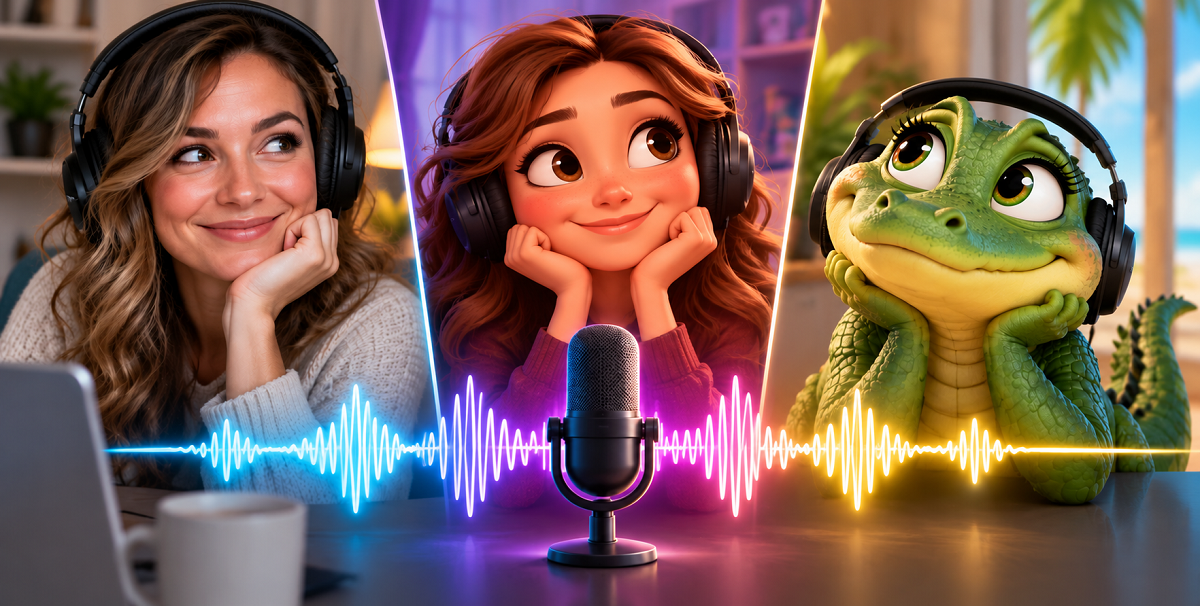
Every guide to AI avatars starts the same way. Upload photos of your face, and get a digital version of you that reads your scripts.
I’d do it backwards.
ElevenLabs Avatars is a new feature from the company best known for voice cloning.
The headline everyone ran with? “Clone yourself.”
But buried in ElevenLabs’ own documentation is something more interesting: an avatar can be a person, a character, or an animal. You can build one without uploading a single photo of anybody.
That’s the version I’d try first, and this guide is built around it.
By the end, you’ll know how to make an AI avatar from nothing but a text prompt — or clone your own face, if that’s what you’d rather do.
You’ll also know what it actually costs, and the two things about this feature that ElevenLabs never explains.
Quick note: this post includes an affiliate link for ElevenLabs. If you sign up through it, I may earn a small commission at no extra cost to you.
What ElevenLabs Avatars Can Do
ElevenLabs Avatars turns a still image into a person on screen who speaks your script. The mouth movements get matched to the words automatically.
That’s called lip-sync. It matters later, because lip-sync and fully generated video cost very different amounts.
The feature launched on June 11, 2026, inside ElevenCreative, the image and video side of ElevenLabs.
Most coverage skips this. Your avatar does not have to be you. ElevenLabs says it plainly in its own documentation: “Avatars support humans, characters, and animals.”
That gives you three ways in:
- Upload photos of yourself and get a clone of you
- Upload photos of a character or an animal
- Skip photos completely and just describe what you want in words — that’s what everyone means by prompting
Then you pair that face with a voice, paste in your script, and it makes the video.
An AI presenter needs two things: a face and a voice. If you already clone your voice with ElevenLabs, you can now build the face in the same account.
That’s the part that saves you real work. No exporting audio between two tools, and one subscription instead of two.
Why Your First AI Avatar Shouldn’t Use Your Face
Every article about AI clones assumes you want your own face on screen. I’d do it the other way around.
Start with a character or an animal. Clone yourself later, once you know you actually like making these videos.
Call it the Face-Last Rule: build something that isn’t you first, and save your real likeness for last.
Three reasons it holds up:
- Nothing of yours gets uploaded. No photos of your face, and no likeness sitting inside a tool you tried once and abandoned.
- You find out if you enjoy this. Making avatar videos is a workflow, not a magic button. Some people love it and some quit after two.
- It costs you less to be wrong. A prompt-built character takes zero prep. Gathering good photos of yourself from several angles takes an afternoon.
There’s a fourth reason, and frankly, it’s a good one. A character avatar is more fun to experiment with, so you’ll actually finish the test instead of putting it off because you don’t want to be on camera.
One thing I won’t promise you
Nobody has publicly tested whether a prompt-built character keeps looking the same across a series of videos. Not ElevenLabs. Not any independent reviewer I could find.
ElevenLabs says its “Styles” feature holds the identity steady. That’s its claim, not a tested result.
So treat this as “here’s how to try it,” not “this definitely works at scale.” I’d rather tell you that than sell you a promise the evidence doesn’t support.
What I’d do about it anyway
Here’s my workaround. I do this with every program I use.
Make a bunch of views on day one and save them all. Smiling, serious, flat, arms out, whatever your videos are going to need. Just in case.
Two reasons it’s worth the extra ten minutes:
- You never have to recreate the character. You’re picking from a set you already made instead of hoping a new generation matches an old one.
- Some images just don’t work, and you can’t tell by looking. I made several versions of my own character. One of them refused to lip-sync at all, and there was nothing visibly wrong with it. Having spares turned that into an annoyance instead of a dead end.
AI images have gotten much better in the last three years, and they’ll keep improving. But it’s still a good idea to think ahead.
How to Make an AI Character Avatar in 6 Steps (No Photos Needed)
This is the no-photos route. You describe a character in words and ElevenLabs builds it.
You’ll need an account on a paid plan before you start, so sign up for ElevenLabs first if you don’t have one. More on which plan you need further down.
Step 1. Open Image & Video
It’s in the left-hand navigation once you’re signed in to ElevenLabs. This is where all the avatar tools live.
Step 2. Start a new avatar
Click New in the Avatar section. That opens the avatar creation screen.
Step 3. Describe your character
The screen offers you two routes side by side: Upload images or From prompt. Pick From prompt — that’s the no-photos one.
Then write what you want in plain language, the same way you’d describe someone to a friend. Be specific about age, clothing, hair, and setting, because vague prompts give vague results.
Step 4. Name it and pick a default voice
The name is just for you, so you can find it again later. The default voice saves you a step on every future video, and you can change it any time.
Step 5. Create the avatar
Click Create Avatar. ElevenLabs generates the base identity. It gets saved in your Assets, so you build it once and reuse it from then on.
This is the day-one moment. Make your spare views now, while you are already in here and the character is fresh.
Step 6. Create the lip-sync video
Pick a style, confirm the voice, paste your script, hit Generate speech, and then hit Generate for the video.
That’s it. You now have a presenter who didn’t exist twenty minutes ago.
The buttons above the prompt box
There’s a row of buttons sitting above where you type. They rewrite your prompt for you rather than changing a setting:
- Enhance — fills out whatever you wrote
- Refine facial features
- Enhance body posture
- Specify lighting
- Add texture detail
Handy if you’re stuck. Skip them if you already know what you want, because they change your wording and you may not get the character you had in mind.
The settings you’ll see, in plain English
The Create Avatar screen only asks for three things: your prompt, a name, and a default voice. The video settings come later, when you make the clip.
That’s where you’ll find these four:
- Aspect Ratio — the shape of the video. Wide for YouTube, tall for Shorts and Reels.
- Resolution — how sharp it is. Most models top out at 720p, which is perfectly adequate for social.
- Duration — how long the clip runs.
- Number of Generations — how many versions it makes at once, up to four. Handy, but each one spends credits.
How to Make an ElevenLabs AI Clone of Yourself
When you’re ready to put your own face on screen, the process is nearly identical. You swap the text prompt for photos.
ElevenLabs asks for 3 to 5 images from different angles. Its guidance: “Higher quality reference images with varied perspectives produce better results.”
It also warns that “single-image results may be inconsistent.” So don’t try to shortcut this with one selfie.
What to gather before you start:
- A straight-on shot
- A three-quarter turn to the left
- A three-quarter turn to the right
- Even lighting on your face in all of them
- The same hairstyle across the set, so the tool isn’t guessing
You don’t need a camera. A phone is fine. What matters is the angles and the lighting, not the equipment.
Everything after the upload is the same six steps as above.
Keeping Your AI Avatar Consistent Across Videos
Styles are the feature that makes this practical instead of a one-off toy.
A style is a saved variation of an avatar you already made. Same identity, different presentation. ElevenLabs lists four things you can vary:
- Camera angles and framing
- Outfits and accessories
- Backgrounds and environments
- Lighting conditions
You create a style two ways: describe it in words, or upload a reference image to guide it.
Why this matters for a channel: you get visual variety across videos without your presenter turning into a different person every week. Build the avatar once, then set up a style for each type of video you make.
How Much Do ElevenLabs Avatars Cost?
You pay in credits, not dollars per video. Credits are the currency ElevenLabs runs on, and every generation uses some. They’re shared across all the ElevenCreative tools, so a video and a voiceover draw from the same pot.
Speech barely touches it. One character of script is one credit on the standard voices, so a 2,000-character script costs 2,000 credits. It’s the video that eats your allowance.
The per-second costs are published, and they’re wide:
- Video generation: 234 to 5,000 credits per second
- Lip-sync: from 67 credits per second — that is the cheapest it ever gets, and you will not get it. Mine averaged around 700 credits per second.
The video range alone spans more than twenty times, from 234 to 5,000. What you actually pay depends on the model and the resolution, so no one can quote you a price for “a video” — including me.
The number that actually helps
Skip the per-second math. ElevenLabs publishes how much each plan includes, and that answers the real question.
| Plan | Price per month | Credits | Video included | Lip-sync included |
| Free | $0 | 10,000 | none | none |
| Starter | $6 | 30,000 | up to 211 seconds | up to 742 seconds |
| Creator | $22 ($11 first month) | 121,000 | up to 705 seconds | up to 2,475 seconds |
| Pro | $99 | 600,000 | up to 3,525 seconds | up to 12,375 seconds |
In plain terms, $22 a month buys you one of two things.
About 41 minutes of an avatar talking to camera. That’s a still image with its mouth moving in time with the audio.
Or about 12 minutes of fully generated video, where everything on screen actually moves.
What $22 actually bought me
==I made a three-minute video with two characters. It used about **80% of a month’s Creator allowance, and the finished video contains 78 seconds** of avatar actually talking.==
Not 41 minutes. Seventy-eight seconds.
Here are the real numbers off my own account:
| What | What it cost |
| Creating the avatar | 1,015 credits, once |
| HeyGen Avatar 4 lip-sync | 3,636 credits for 5.8 seconds |
| Creatify Aurora lip-sync | 1,697 credits for 1.8 seconds |
| Speech | 1 credit per character, exactly as published |
Those 78 seconds of avatar talking cost roughly 54,000 credits between them, which is about 700 credits for every second a character is on screen speaking — ten times the cheapest rate they publish. At that rate $22 buys you about three minutes, not forty-one.
To be clear about what is and is not in that number: it is lip-sync only, both characters combined. The voiceover is separate and genuinely cheap, exactly as ElevenLabs says.
I think “from” is doing a lot of work in that sentence. It presumably describes the cheapest model at the lowest resolution. Neither of the two models that would actually animate my character came close to it.
What I would tell you instead: budget on the assumption that a three-minute video with a face on screen for most of it will eat most of a $22 month. If that sounds like a lot, it is — and it is the main reason my own advice is to make one short video first and see how you feel.
And pay monthly, not yearly. Every one of these tools dangles a discount for paying twelve months up front, and it is a genuinely good deal — once you know the thing does what you want. Before you know that, it is the same mistake as uploading your face on day one. Find out whether you will still be doing this in 3 months, then take the discount.
In fairness to ElevenLabs, this was my first time using it, and a chunk of that spend was me learning rather than making: failed experiments, a whole version I abandoned halfway, clips regenerated because I had cropped them wrong. A second video will cost me less — but nowhere near forty times less, and the per-second rate does not change no matter how good I get.
The free plan can’t make video at all. Not a smaller allowance — none.
ElevenLabs’ own comparison table puts an x in the video row for Free, which is capped at three generations a day and images only.
So $6 a month gets you in the door, and $22 is where it stops feeling restrictive.
One more thing worth knowing: the app shows a cost estimate before you generate. You see what a job will spend and nothing gets charged until you approve it, so you’re never guessing with real credits on the line.
How Long Can the Videos Be?
There’s no single answer, because the limit comes from which lip-sync model you pick.
A lip-sync model is just the engine that matches mouth movements to audio. ElevenLabs picks one automatically based on your input, and you can override it before generating.
There are seven in the dropdown, and they’re not all made by ElevenLabs. You’ll see:
- Creatify Aurora — the fast, cheap default, capped at 720p
- Veed Fabric 1.0, Veed Lipsync and Veed Lipsync 2.0
- HeyGen Avatar 4 — yes, that HeyGen. Its avatar model runs inside ElevenLabs
- Sync 3 and Sync Lipsync 2 Pro — the Pro version goes up to 4K
You won’t see OmniHuman 1.5 on a US account. ElevenLabs offers it elsewhere, but it isn’t in the menu here. More on that below.
Don’t let the unfamiliar names put you off. You can ignore the whole list and let ElevenLabs choose, which is what I’d do until you have a reason not to.
The one with a published length limit is Veed Fabric 1.0, which can generate clips up to five minutes long per generation, at 480p or 720p.
Five minutes in a single render matters more than it sounds. A typical three-minute explainer is one job, not a stitched-together sequence of short clips.
Most models cap out at 720p. If you need it sharper, there’s a separate upscaling step available afterward.
One limit I can’t give you a number for: several models don’t publish a maximum duration at all, and the outside sources contradict each other badly. I’m not going to print a figure I can’t stand behind.
The US Restriction Nobody Explains
If you’re in the United States, read this before you sign up.
ElevenLabs’ documentation carries this sentence: “Some Avatar models and reference image upload capabilities are restricted in the United States due to regulatory or provider requirements.”
And that’s where ElevenLabs leaves it. No fuller explanation exists anywhere in the docs.
After I subscribed, I checked the model list on my own US account.
Seven lip-sync models show up. OmniHuman 1.5 — the one ElevenLabs lists elsewhere — isn’t among them. It isn’t greyed out or locked behind a warning. It simply isn’t there.
Every model ElevenLabs flags as unavailable in the US comes from a Chinese provider. So the restriction looks like a provider or regulatory issue on their end, not anything to do with your account or your plan.
What this means for you: you get a shorter menu, not a broken feature. Nothing in the six steps above depends on a blocked model, and the default ElevenLabs picks for you is available here.
Worth doing anyway: open the model dropdown once after you sign up and see what your own account shows. It takes thirty seconds, and ElevenLabs may change the list.
What YouTube Requires Before You Publish
YouTube requires a disclosure when your video makes a realistic person appear to say or do something they didn’t.
An avatar of your own face reading your own script is a photorealistic synthetic version of a real person. So turn the disclosure on.
Where it lives: during upload, in the Attributes section, under AI use. Many guides still call this “altered or synthetic content,” which is the old label.
Two things worth knowing:
- Disclosure doesn’t cost you anything. In YouTube’s own words, disclosing AI content “won’t limit a video’s audience or impact its eligibility to earn money.”
- Cloning your own voice for a voiceover doesn’t require disclosure at all. YouTube lists it as an example of something that doesn’t need the label.
The real monetization risk isn’t the avatar. It’s volume. YouTube’s inauthentic content policy excludes AI content made with “generic or unoriginal templates giving the impression of mass production without adding the creator’s original, authentic insights or perspective.”
In plain terms: an avatar reading a script you actually wrote is fine. Forty near-identical videos a week isn’t.
I go deeper on the policy side in How to Create an AI Clone of Yourself for YouTube.
How ElevenLabs Avatars Compare to Other AI Avatar Tools
A few other tools can do the same job. But there isn’t one universal winner. The better choice depends mostly on how long your videos are, how polished you need them to look, and whether the star is a real person at all.
Here’s the short version:
- Short videos, and your voice is already cloned → ElevenLabs
- Long videos, or you need 4K → HeyGen
- Stylized characters as the main event → Hedra
Now the detail behind that.
HeyGen: for longer videos
HeyGen is the best-known name here, and it’s the interesting comparison because you don’t strictly have to choose. Its Avatar 4 model is one of the seven lip-sync engines inside ElevenLabs, so you can use HeyGen’s technology without a HeyGen subscription.
Going direct to HeyGen buys you length and sharpness. Its free plan does 3 videos a month at up to 1 minute, with one custom avatar. Creator is $29 a month for 600 credits and video up to 30 minutes. Pro is $49 for 1,000 credits and adds 4K export.
Go direct to HeyGen if you’re making long-form talking-head content — full tutorials, webinar replays, course modules — or you need 4K for something that has to look premium.
ElevenLabs: for shorter videos in one place
Most ElevenLabs models stop at 720p, and the longest published single generation is five minutes.
That sounds like a limitation until you look at what you’re actually making. A three-minute explainer, a Short, a Reel, a video intro — all of that fits inside five minutes, and 720p is more than enough on a phone.
Stay with ElevenLabs if your videos are under five minutes and your voice already lives there. You skip exporting audio between two subscriptions, and you’re paying for one tool instead of two.
That’s really the split. It isn’t which tool is better, it’s how long your videos run and how sharp they need to look.
Hedra and D-ID: the other two options
Hedra builds talking video from a photo and handles stylized characters. Its published plans run $15 a month for Basic (1,500 credits), $30 for Creator (5,400), and $75 for Professional (14,400). Credits come off based on the length of video you generate, so a ten-second clip is billed as ten seconds.
D-ID Creative Reality Studio also does photo-to-avatar. Its FAQ lists a five-minute video limit and a 10 MB cap on the image you upload. I couldn’t confirm current pricing from D-ID’s own site, so there’s no figure for it here.
One last thing that applies whichever you pick. ElevenLabs has no API yet — it says access is “not available at launch; planned for future release.” So you can’t automate this into a pipeline today, no matter which model you generate with.
What ElevenLabs Avatars Can’t Do Yet
Let’s be straight about the gaps. This feature is barely three months old.
- No API. Everything happens by hand in the dashboard.
- A very wide price range. Video runs 234 to 5,000 credits per second depending on model and resolution, so you cannot predict a specific clip before you build it.
- Very little independent testing. I looked. There’s almost no hands-on review of this feature by anyone outside ElevenLabs as of the publishing date of this article.
- An open question about longer clips. A user asked at launch about sync drift on longer videos, where small timing errors add up until you can see the mouth falling behind the audio. As far as I can find, it hasn’t been answered.
- 720p on most models. Fine for social, not for anything you want to look premium without an upscaling step.
- No documented watermark or built-in disclosure. Which sounds convenient, but it means the responsibility to be honest about AI content sits entirely with you.
None of that makes it a bad tool. It makes it a new one. And new tools are worth trying cheaply rather than betting a channel on.
A Note on Using Someone Else’s Face
You can technically upload photos of anyone. You shouldn’t.
ElevenLabs’ terms put it on you: “You may not provide Input or create Output for which you do not have all the rights necessary.” Its image terms also prohibit generating the likeness of anyone under 18.
Use your own face, a character you invented, or a face you have written permission to use. Nothing more complicated than that.
ElevenLabs Avatars FAQ
Do I need a paid plan to use ElevenLabs Avatars?
Yes. Avatars is available on all paid plans, and the free tier only does images, capped at three requests a day. Starter at $6 a month is the cheapest way in.
Can I make an avatar without uploading any photos?
Yes. You can describe the character entirely in a text prompt instead. That’s the route I’d start with.
Can an avatar be an animal?
Yes. ElevenLabs’ documentation confirms avatars support humans, characters, and animals.
How many photos do I need to clone myself?
Three to five, taken from different angles. ElevenLabs warns that single-image results may be inconsistent, so don’t try it with one selfie.
How much does one video cost in credits?
It depends on the model and resolution. Video runs 234 to 5,000 credits per second, and lip-sync starts at 67 credits. Creator, at $22 a month, includes up to 2,475 seconds of lip-sync — roughly 41 minutes. But 67 is the cheapest case, not a typical one — making a three-minute video with two characters used about 80% of my Creator allowance, which works out nearer 700 credits per second of avatar talking. See the costs section for the real numbers. The app shows a cost estimate before you generate, and nothing is spent until you approve it.
Does my avatar video need a disclosure on YouTube?
If it shows a realistic version of a real person, yes. Turn it on under Attributes, then AI use. It doesn’t reduce your reach or your earnings.
Does it work in the United States?
Yes. I checked my own US account: seven lip-sync models are available, and one ElevenLabs offers elsewhere, OmniHuman 1.5, isn’t in the menu here. Nothing in this guide depends on it.
Start With Something That Isn’t You
The pitch for AI avatars has always been “put yourself on screen without filming.” That’s real, and it works.
But it’s the harder version of the experiment. It asks you to hand over your face before you know whether you’ll use the tool twice.
Build a character first. Give it a name, a look, and a voice. Make one 60-second video and see how it feels.
If you like it, cloning yourself is only an afternoon of photos away. If you don’t, you’ve spent six dollars and learned something without putting your likeness into a tool you may never use again.
Have you tried an AI avatar yet, or has the whole idea put you off? Tell me in the comments. I especially want to hear from anyone who’s built a character instead of a clone of themselves, because that’s the part nobody is writing about yet.
Leave a Reply